


If your IPTV is not working properly—constant buffering, freezing, “authentication failed” errors, or apps crashing—you are not alone. These are the most common IPTV issues users face in 2026, especially during peak streaming hours.
This IPTV troubleshooting guide is a complete, step-by-step hub designed to help you fix IPTV problems on any device. Whether you are using a Smart TV, Android TV box (NVIDIA Shield), Amazon Firestick, mobile phone, or PC, this guide walks you through the exact fixes that work.
Updated for 2026, this guide covers IPTV buffering fixes, login and connection errors, app crashes, VPN and ISP throttling issues, and device-specific problems— including common IPTV issues reported by users in Canada and other high-traffic regions.
Use this guide to quickly fix:
• IPTV buffering or freezing on any device
• IPTV “Authentication Failed” and login errors
• IPTV working on phone but not on TV
• IPTV stopping or buffering at night
• IPTV app crashing or not opening
• VPN, ISP throttling, and network-related IPTV issues
Click on your exact problem below to jump to the solution.
IPTV buffering or freezing → Fix IPTV buffering & freezing issues
IPTV says “Authentication Failed” → Fix IPTV login & connection errors
IPTV works on phone but not TV → IPTV device-specific troubleshooting
IPTV stops working or buffers at night → IPTV ISP throttling & VPN fixes
IPTV app crashes or won’t open → Fix IPTV app & player issues
Quick Fixes – Start Here
This IPTV troubleshooting guide starts with the fastest fixes that resolve most IPTV problems within minutes.
Power cycle your modem, router, and streaming device in that specific order.
- Step: Unplug each device, wait 30 seconds, and plug them back in (Modem > Router > Device).
- Why it works: This clears memory leaks and refreshes your network connection, which is especially helpful during peak hours for users on Bell or Rogers networks.
Use a free tool like Speedtest.net or fast.com to verify your current bandwidth.
- Target Speeds: You need at least 10 Mbps for stable HD streaming and 25 Mbps or higher for 4K content.
- Pro Tip: If speeds are lower than expected, close bandwidth-heavy apps on other devices and test again near your router.
Wireless interference is a leading cause of freezing.
- Wired: Connect your device directly to your router via an Ethernet cable for maximum stability.
- Wireless: If you must use Wi-Fi, switch from the 2.4GHz band to the 5GHz band in your router settings for faster, less crowded data transmission.
Temporary files can accumulate and cause playback glitches.
- Exact Menu Path (Android/Firestick): Go to Settings > Apps > [Your IPTV App] > Storage > Clear Cache.
- Note: Only clear “Data” if you are prepared to re-enter your login credentials.
Apps handle stream decoding differently. If your current player is stuttering, test your service on an alternative like TiviMate, IBO Player, or VLC to isolate if the issue is app-specific.
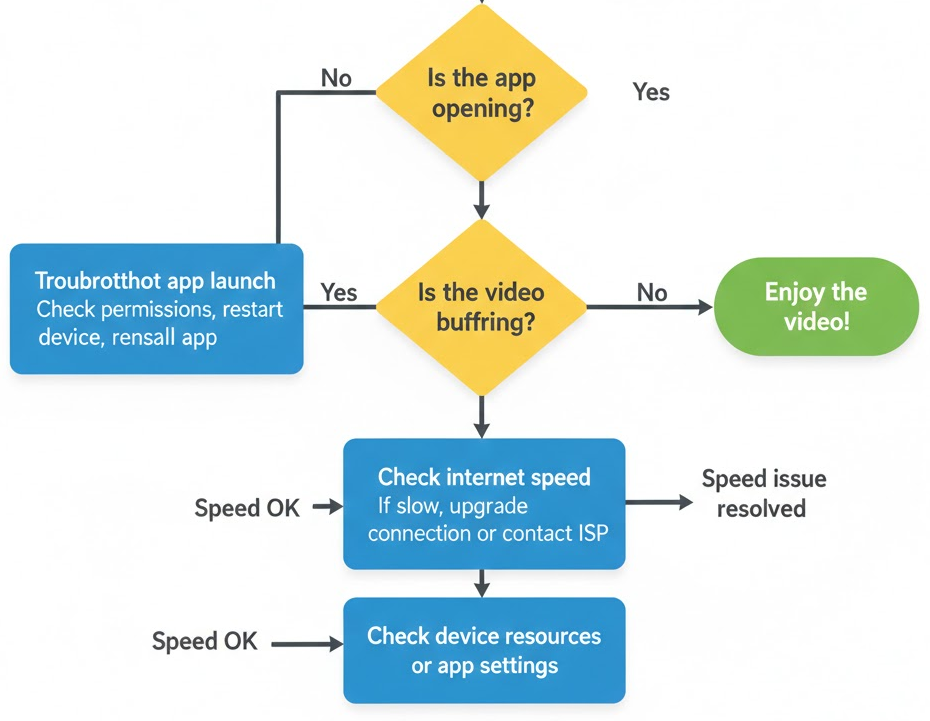
If IPTV still does not work after these steps, continue to the sections below to identify the exact issue.
Buffering & Freezing Issues
Buffering occurs when data doesn’t load fast enough to maintain continuous playback, resulting in annoying pauses or stutters.
Why Buffering Happens
Common culprits include ISP throttling, network congestion, overloaded IPTV servers, or weak hardware. Your stream travels from a remote server through your ISP to your device; a bottleneck at any point causes a delay.
A simple test: if buffering happens on all channels and apps, the issue is usually your internet or device. If buffering only affects certain channels or only happens at night, the problem is often ISP throttling or an overloaded IPTV server.
Peak Hours and Throttling (Canada)
In Canada, users frequently notice a dip in performance during “peak hours”—typically 6 PM to 11 PM.
- Congestion: Local neighborhood traffic increases as more people stream simultaneously.
- ISP Behavior: Providers like Rogers and Shaw may intentionally throttle (slow down) streaming traffic to manage network load during these high-demand periods.
General Solutions Overview
- Ensure your network is optimized by reducing the number of connected devices.
- Adjust the “Buffer Size” or “Time Shift” settings within your player app to allow for a larger data cushion.
- Check if your provider’s server is currently overloaded; server-side issues often resolve naturally over time.
For a complete step-by-step fix, including advanced network settings, see our full IPTV buffering guide.
Login & Connection Problems
These issues block access entirely, often appearing as “Authentication Failed” or a blank screen.
Common Connection Obstacles
- Credential Errors: IPTV login problems are often caused by case-sensitive. Double-check for typos, such as mistaking the letter “O” for the number “0”.
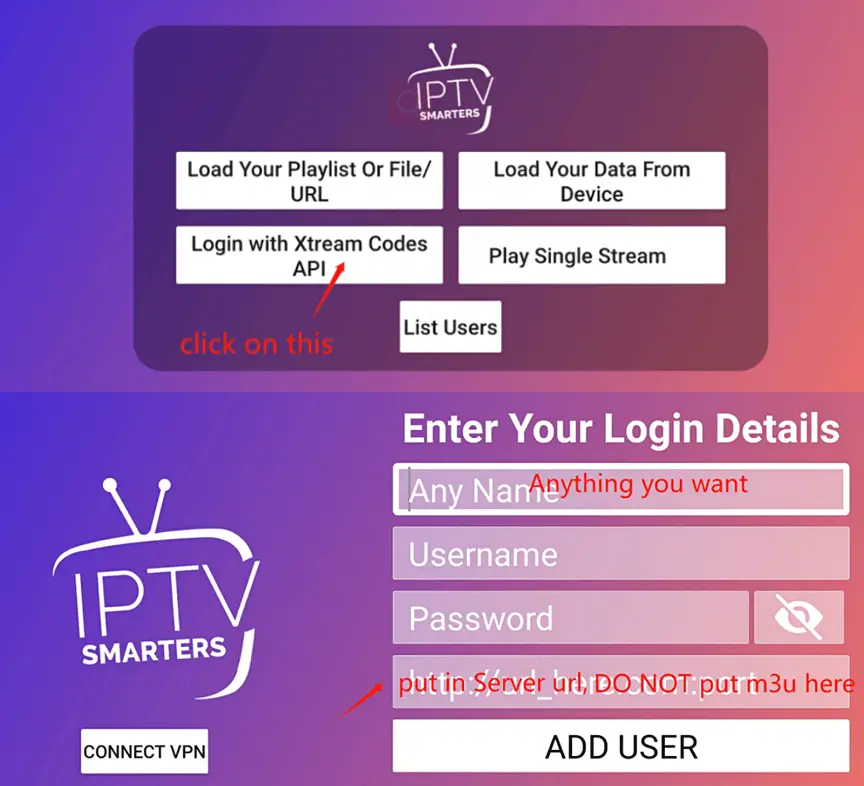
- Server URL Mistakes: Ensure your M3U URL or Xtream Codes API is copied exactly without extra spaces.
- Expired Subscriptions: Services often lapse monthly or quarterly. Log into your provider’s dashboard to confirm your status.
- ISP Blocking: Some ISPs block IPTV domains or ports at the DNS level. In Canada, strict regulations can sometimes trigger these blocks.
- MAC Address Binding (Very Common Issue):
Some IPTV providers lock your subscription to one device.
If you change your TV, Firestick, Android box, or app, your login may suddenly stop working.
Symptoms:
• Authentication failed
• Blank screen after login
• Playlist loads but channels do not playSolution:
Contact your IPTV provider and ask them to reset or update your MAC address.
VPN as a Tool: A VPN can help bypass ISP blocks or geo-restrictions, but it will not fix incorrect login details or expired accounts.
See our full IPTV login and connection troubleshooting guide for detailed credential checks.
IPTV Apps & Players
The player you choose acts as the engine for your stream, significantly affecting stability and features.
High-Level Comparison
- Why Apps Matter: Quality players offer efficient decoding, EPG (Electronic Program Guide) integration, and regular bug fixes.
- Paid vs. Free: Paid apps generally provide a cleaner, ad-free experience with advanced features like multi-screen and parental controls.
Popular Players (2026 Edition)
- TiviMate: Highly recommended for Android TV; known for its smooth, professional interface and superior EPG support.
- IBO Player: A lightweight, highly compatible option that works well across various service formats.
- IPTV Smarters Pro: A versatile, cross-platform app that supports cloud-based playlists.
- VLC Media Player: The ultimate fallback; it is free and can play almost any video format if specialized apps fail.
Visit our Apps & Devices section for full setup guides for each major player.
VPN & Network Issues
VPNs are frequently mentioned in IPTV troubleshooting, but they are a tool, not a universal “cure-all”.
When a VPN Helps
- Bypassing Throttling: some ISPs may slow down or de-prioritize streaming traffic during peak hours, a VPN encrypts your traffic so the ISP cannot identify it as IPTV.
- Overcoming Blocks: VPNs help you bypass regional geo-blocks or ISP-level port restrictions.
When a VPN Doesn't Help
Using a VPN will not fix wrong login details, expired subscriptions, or broken IPTV servers. If IPTV fails even with a VPN, the issue is likely account-related or server-side.
- Base Speed Limits: A VPN cannot make your underlying internet faster. If your base speed is 5 Mbps, a VPN may actually slow it down further due to encryption overhead.
- Hardware/App Issues: It won’t fix app crashes, device overheating, or server-side downtime.
Free vs. Paid Options (Neutral Overview)
- Free VPNs: Often have data caps and slower speeds, making them unsuitable for long-term 4K streaming.
- Paid VPNs: Services like NordVPN or ExpressVPN offer unlimited data and faster, dedicated streaming servers.
Device-Specific Problems
External streaming devices (Firestick, Android TV boxes) are generally more stable than built-in Smart TV apps.
Different platforms have unique hardware constraints that can lead to streaming failure.
Platform Summaries
- Android TV / NVIDIA Shield: IPTV not working on Smart TV is often caused byoutdated firmware or RAM congestion. Ensure Google Play updates are enabled and clear cache regularly.
- Amazon Firestick: Its compact design makes it prone to overheating. Ensure it is in a ventilated area. Limited storage also prevents app updates; manage your apps to keep at least 1GB of space free.
- Smart TVs (Samsung/LG): Tizen and webOS have limited app stores. You may need to use an external device (like a Firestick) if your TV’s native apps are outdated or unsupported.
- Mobile (iOS/Android): High battery drain is common. On cellular data, Canadian users should watch for data caps and usage spikes.
- PCs (Windows/Mac): Generally the most stable, but can face codec mismatches in browsers. Using a dedicated player app is recommended.
Advanced Troubleshooting
If the basics fail, these targeted solutions address niche symptoms.
- Black Screen with Audio: This is usually a video codec mismatch. Try switching players or updating your app’s internal player engine.
- No Sound: Check your device’s audio output settings. Ensure HDMI cables are secure and audio formats (like AC3) are supported by your player.
- EPG Not Loading: This usually stems from a URL error or a server-side delay. Try an alternative EPG source or clear the app data to force a refresh.
- Audio/Video Sync: If the sound doesn’t match the picture, use your player’s settings to adjust the sync, often measured in milliseconds (ms).
- Aspect Ratio: If the picture looks stretched, toggle between 16:9, 4:3, or “Original” in your player’s display settings.
When to Get Expert Help
Knowing when to stop troubleshooting is as important as the fixes themselves.
Signs It is Time to Call Support
- The issue persists across multiple devices and multiple apps.
- Only specific channels are failing, while others work perfectly (indicating a server-side issue).
- You have exhausted the “Quick Fixes” and the problem remains consistent.
Information to Collect
Before contacting your provider or a forum, have this data ready:
- Device & OS: (e.g., Firestick 4K, Android 11).
- App & Version: (e.g., TiviMate v4.7).
- Speed Test Results: Current download speed and time of day.
- Error Message: The exact text of any error popup.
- Steps Taken: A brief list of what you already tried (e.g., “Restarted router, cleared cache”).
Structured Reporting
Avoid vague complaints like “it doesn’t work.” Instead, state: “Channels buffer every 30 seconds between 7 PM and 9 PM, but play smoothly in the morning”.
Providing clear information helps support teams fix your issue faster and avoids unnecessary back-and-forth.
When IPTV Troubleshooting Isn’t Enough
If IPTV problems continue across multiple devices and apps—especially buffering, freezing, or repeated login failures—the issue is often the IPTV provider itself, not your setup.
Many users spend weeks troubleshooting before realizing that unstable servers, overloaded infrastructure, or poor regional optimization are the real cause. In these cases, switching to a more stable, region-tested IPTV service is often more effective than endless technical fixes.
If you want to see an example of a stable IPTV service optimized for smooth streaming, you can review this option here.
Expandability Note: This hub is designed to evolve. For deeper technical dives, click the links within each section to access our specialized, device-specific troubleshooting manuals.
FAQ – IPTV Troubleshooting
Q1: Why does IPTV buffer even with fast internet?
– Yes, IPTV services that include major sports networks allow fans to watch the Pro Bowl live online.IPTV buffering is often caused by ISP throttling, overloaded servers, or unstable Wi-Fi—not raw internet speed alone.
Q2: Does a VPN always fix IPTV issues?
– No. A VPN can help bypass ISP throttling or blocks, but it will not fix expired subscriptions, incorrect login details, or server-side outages.
Q3: Is IPTV buffering worse at night?
– Yes. Peak hours (usually 6 PM–11 PM) cause higher congestion and throttling, especially in Canada and other high-usage regions.
Q4: What is the most stable way to watch IPTV?
– Using a wired Ethernet connection, a reliable IPTV player, and a stable provider with optimized servers gives the best results.